How finisher certificates work
Bield generates personalised finisher certificates as PDFs — one per finisher, rendered from the organiser's design template and the runner's result data. They can be delivered in-app to Bield members, by email to non-members, and downloaded at any time from the runner's engagement.
Prerequisites — three things that must all be true
1. Finisher certificates must be enabled for the race (Features tab → Finisher certificates toggle).
2. Results must be published (not just uploaded — the organiser must tap Publish).
3. The runner must have a contact: a matched Bield account, or an email address in the results CSV.
Without all three, no certificate is sent. The most common reason runners don't receive a certificate is that results have been uploaded but not published.
Real example — Alex Morgan, Epona 100 Miler
Below is an actual Bield finisher certificate. The annotations explain what each element is and where it comes from.
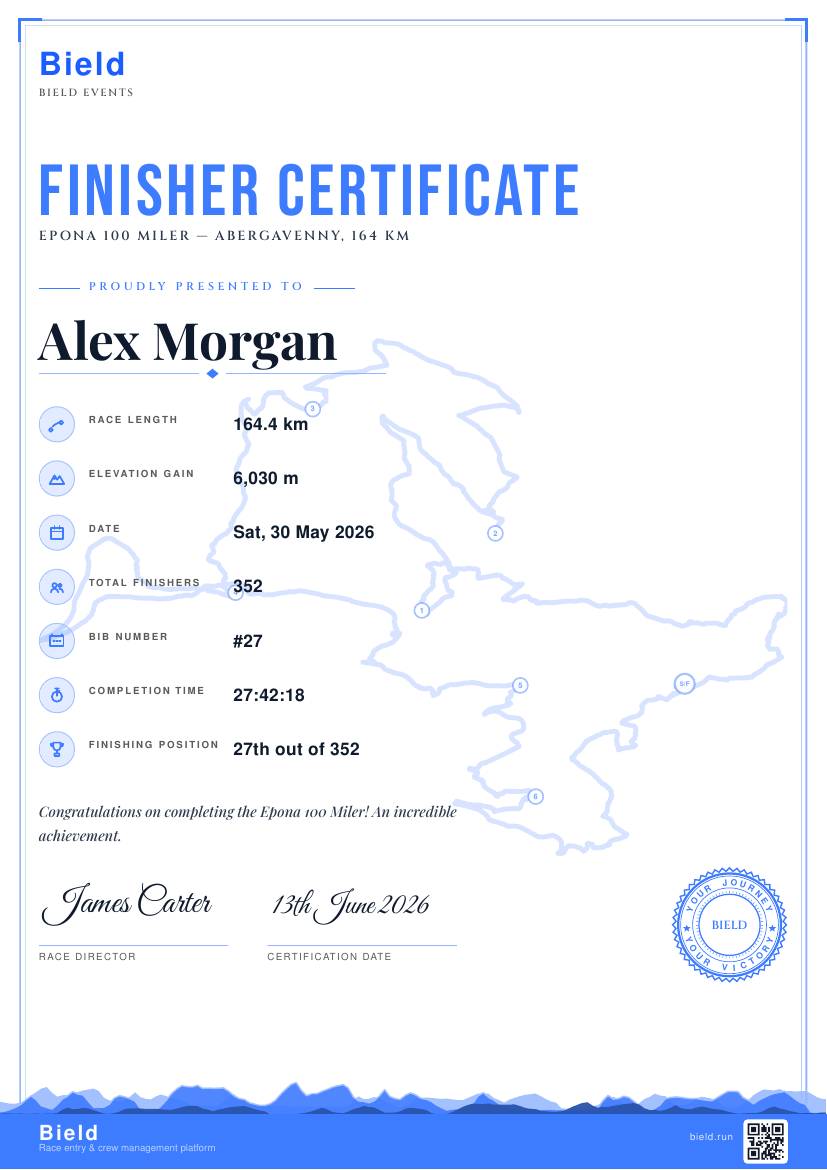
Bield finisher certificate — Epona 100 Miler. This is a real certificate generated by the Bield platform.
A light rendering of the race's GPX route fills the certificate background. Drawn from the organiser's uploaded GPX file. Togglable in the certificate design settings.
Small markers on the route watermark show the checkpoint positions along the course. Derived from the checkpoint locations set in the race editor.
The runner's name from the results CSV or their Bield profile. Maps to the {runner_name} template variable.
The race's canonical name from the Bield race page. Maps to {race_name}.
Taken directly from the published results row. Maps to {finish_time}, {position}, {total_finishers}. The organiser can toggle position and total finishers on or off.
Total elevation gain for the race, shown at the foot of the certificate. Derived from the uploaded GPX file's elevation data.
The Bield platform seal — signals the certificate was generated and verified by Bield. Always present; cannot be removed by the organiser.
Links to bield.run. Allows anyone who sees the certificate (printed or digital) to find out more about Bield and verify authenticity.
Set by the organiser in their certificate design panel. Maps to {organiser_name} in the email template.
The organiser sets an accent colour (matching their page theme or a custom hex). It colours the heading, rule lines and the seal border.
Organiser workflow — design, upload, send
- Enable finisher certificates for the race Race editor → Features tab → toggle Finisher certificates on. Do this before you upload results.
-
Design your certificate
Dashboard → Public presence → Certificate. Set the accent colour, heading, congratulations message (use
{race}and{name}tokens), race director name, and optional rosette stamp. Toggle route map, elevation caption, position and total finishers on or off. Tap Preview certificate to see a sample PDF before going live. -
Set your email template
Below the certificate design panel: set the subject and email body. Available tokens:
{runner_name},{race_name},{race_date},{finish_time},{position},{total_finishers},{organiser_name},{certificate_link},{join_link}. A “Sent via Bield” footer is always appended. A live preview shows how the email will look. -
Upload results with an email column
To reach non-Bield runners by email, your results CSV must include an
emailcolumn. Without it, those runners will be in the “no contact” group and skipped. - Publish results Results tab → tap Publish. This makes results visible to Bield members matched to their results.
- Send certificates Results tab → Send certificates. Finishers are grouped: in-app, by email, no contact. You can tweak the subject/body for this batch only. Certificates render in your browser and deliver in batches — keep the tab open. A summary shows sent / failed / skipped at the end.
- Resend if needed Open Send certificates again at any time to resend to anyone who was previously failed or skipped.
The runner's experience
Using the Epona 100 Miler example: Alex Morgan finishes, the organiser uploads and publishes results, then sends certificates.
- Alex receives an in-app notification “Your Epona 100 Miler finisher certificate is ready.” A push notification fires at the same time if notifications are enabled.
- Alex opens the engagement On the Epona 100 Miler engagement page, a Download finisher certificate button has appeared. It wasn't there before results were published.
- Alex downloads the PDF The PDF opens directly — it's the certificate shown in the example above, personalised with Alex's name, finish time, position and the race route watermark.
If Alex wasn't matched to a Bield account
If Alex isn't on Bield but their email is in the results CSV:
- Alex receives an email: subject from the organiser's template, body including their finish time and a download link.
- The download link is valid for 30 days. Alex opens it; the PDF downloads directly.
- The email also includes a
{join_link}block inviting Alex to join Bield.
Delivery channels explained
| Channel | When it's used | What the runner receives | Link expiry |
|---|---|---|---|
| In-app | Runner is a Bield member matched to the result | In-app notification + push; Download button on engagement | No expiry — always available on the engagement |
| By email | Email in results CSV; runner not a Bield member | Email with a personalised download link + join-Bield block | 30 days from send |
| No contact (skipped) | No email on CSV; not a Bield member | Nothing sent; organiser summary flags as skipped | n/a — add email to CSV and resend |
Certificate outcomes for the organiser
| Outcome | What it means |
|---|---|
| Sent | Delivered successfully (in-app or email) |
| Failed | Delivery attempted but failed (e.g. email bounce). Resend from Send certificates to retry. |
| Skipped — no contact | No email address and no Bield match. Add an email column to the results CSV and resend. |
Common questions
My certificate download link has expired. What can I do?
Email links are valid for 30 days. After that, ask the organiser to open Send certificates and resend — it will issue a fresh link. If you're a Bield member, your certificate is always available on your engagement page with no expiry.
Can an organiser send certificates before publishing results?
No. Results must be published before the Send certificates dialog is available. This is a hard prerequisite — it ensures the certificate data (position, time, total finishers) is the same as what runners see on the race page.
Can the organiser switch off certificates mid-race?
Yes — toggling Finisher certificates off in the Features tab hides the tab but doesn't delete any certificates that have already been generated or sent. Runners who already received their certificate still have it.
I didn't get my certificate by email. What should I check?
Check your spam / junk folder first. Then confirm with the organiser that: (1) results are published, (2) certificates are enabled for the race, and (3) your email address was in the results CSV. If all three are true but the email hasn't arrived, ask the organiser to resend.
Can I print the certificate?
Yes. The PDF is designed for both digital display and print. Download it from your engagement or the email link and print from any PDF viewer.